
Samsung Gallery Sync with Google Storage: Practical Review for Seamless Photo and Video Access Across Galaxy Devices
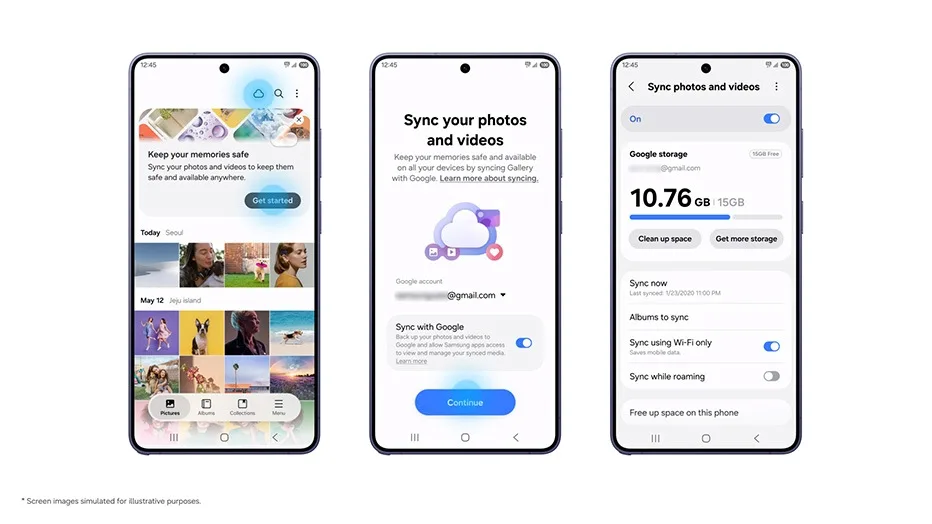
Image: Official product photography / Samsung Newsroom · Source
Samsung Gallery sync integrates with Google storage to enable cross-device access to photos and videos on supported Galaxy devices, simplifying cloud management without separate accounts and offering features like space freeing and easy multi-device transitions.
Physical Design and Product Variants
Samsung Gallery sync with Google storage is a software service integrated within the Samsung Gallery app on select Samsung Galaxy mobile phones and tablets. It is not a separate physical device but a feature within the existing Gallery app available on devices running One UI 9. Samsung plans to expand support in phases across compatible Galaxy devices; however, exact model details are not fully specified beyond this OS requirement.
Interface and Controls
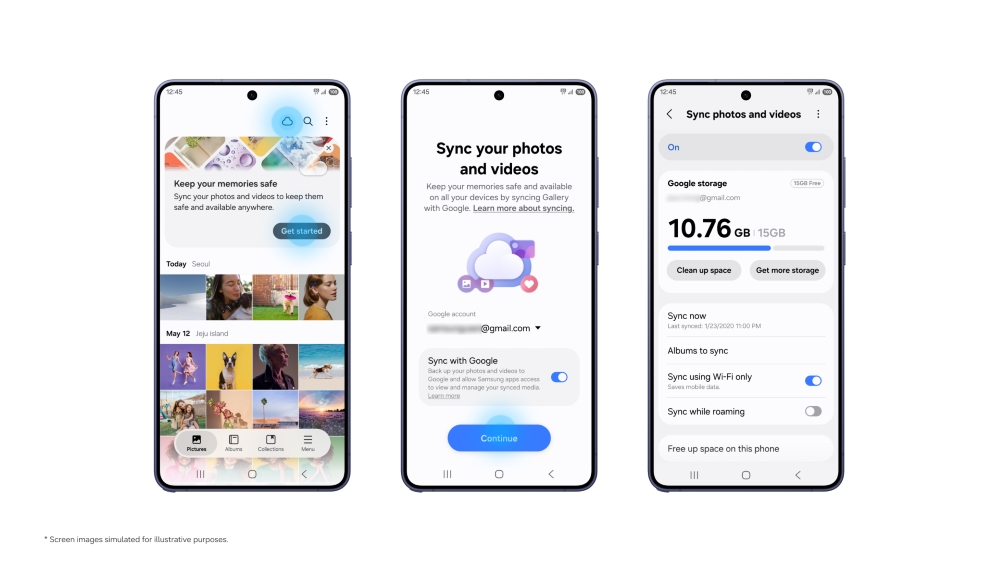
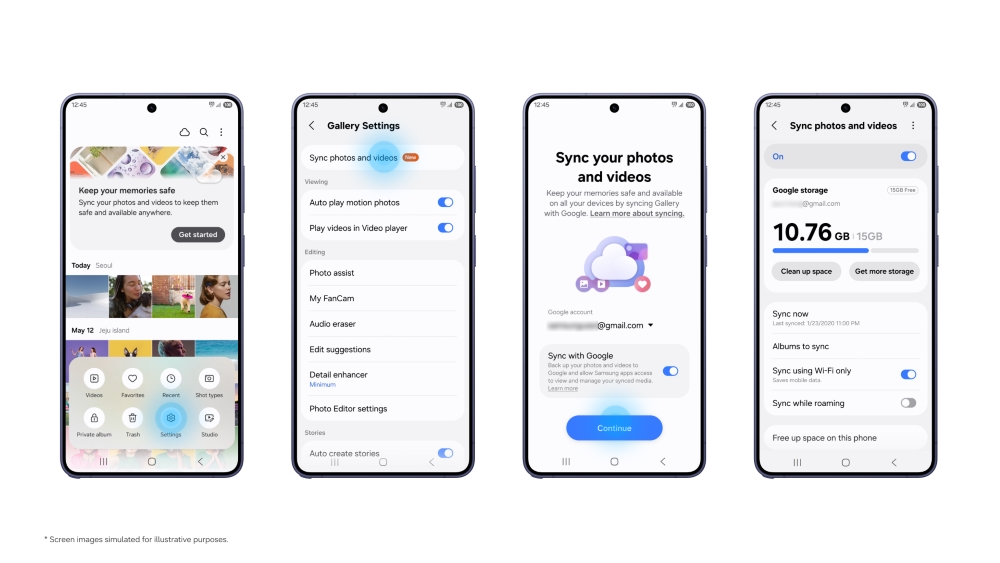
The integration is accessible via the standard Gallery app interface. Users enable synchronization through the app by tapping the cloud icon visible within the Gallery or by navigating to Gallery Settings and toggling "Sync photos and videos." On initial setup, the interface guides the user with on-screen instructions to connect existing Samsung and Google accounts and enable the feature. When accessing synced content, previews of photos and videos appear within the Gallery app without requiring immediate full downloads, facilitating quick browsing.
Core Functionality
Samsung Gallery sync uses the user’s Google account storage to store photos and videos, allowing these media files to be accessed seamlessly across multiple Galaxy devices logged into the same Samsung and Google accounts. This approach eliminates the need for users to maintain a separate cloud storage account specifically for Samsung Gallery sync. The service works by uploading original media files to Google storage and displaying thumbnails or preview versions on each device.
When installed and enabled on a new Galaxy device, the user can immediately view previews of their entire synced library without having to download full-size originals. If the user requires the original file, they can selectively download it on demand within the Gallery app. This minimizes local storage usage while maintaining photo and video accessibility.
Space Management Feature
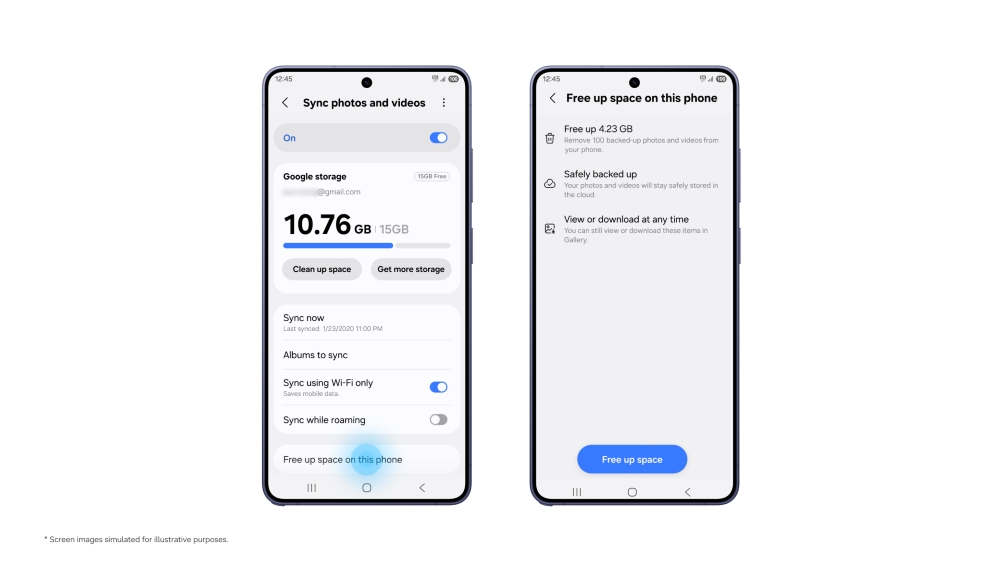
To aid with device storage limitations, Samsung Gallery sync includes a "Free up space" functionality. After media is uploaded to Google storage, users can activate this feature to delete local originals from the device, substantially freeing storage space. While originals are removed, the Gallery app preserves thumbnails to maintain navigation and visibility of content without occupying significant device memory.
This design balances local device performance and storage management while leveraging cloud storage capabilities.
Network, Account, and Software Requirements
Samsung Gallery sync relies on having both a Samsung account and a Google account set up on the device. The device must run One UI 9 or later to support this feature. A stable internet connection is necessary for syncing photos and videos between local device storage and Google storage.
The Google account associated with sync shares its 15 GB free storage quota across Gmail, Google Drive, Google Photos, and Samsung Gallery sync. Users who require additional cloud space can upgrade via Google One paid plans, which the sync service respects and utilizes accordingly.
Practical Use-Case Scenarios
### Example Workflow 1: Personal User Managing Photos Across Phone and Tablet
User: A private individual who takes photos on a Galaxy smartphone and wishes to view and manage them on a Galaxy tablet.
Prerequisites: Both Galaxy phone and tablet running One UI 9+, signed in with the same Samsung and Google accounts; Gallery sync enabled on both devices.
Steps: Enable Gallery sync on the phone after ensuring Samsung and Google accounts are linked; take photos as usual. On the tablet, sign in with the same accounts and activate Gallery sync. Photos taken on the phone appear as previews in Gallery on the tablet without full downloads. When needed, originals can be downloaded selectively.
Success Indicators: The user can browse recent and historical photos seamlessly on both devices; local tablet storage remains optimized via the "Free up space" feature.
Limitations: Sync is dependent on network connectivity and available Google storage. Users must monitor storage availability to avoid sync interruptions.
### Example Workflow 2: Upgrading to a New Galaxy Device
User: Someone purchasing a new Galaxy phone and wanting continuous access to their existing photo and video library.
Prerequisites: The old device had Gallery sync enabled with Samsung and Google accounts; the new device supports One UI 9 or later.
Steps: On setup, sign in to the new device with the existing Samsung and Google accounts. In Gallery, enable sync to preview your media library. Originals remain in Google storage and can be downloaded as needed.
Success Indicators: Quick access to existing photos and videos without waiting for full downloads. No need to transfer files manually.
Limitations: Previews are available immediately; however, accessing full-resolution originals requires download, which may consume bandwidth and could incur delays depending on connection speed.
### Example Workflow 3: Freeing Device Storage on an Overloaded Phone
User: A Galaxy phone owner nearing storage capacity due to a large photo and video library.
Prerequisites: Gallery sync enabled, Google account with sufficient storage, stable internet.
Steps: In the Gallery app, use the "Free up space" option to remove original local files that have been safely uploaded to Google storage. Retain thumbnails for gallery browsing.
Success Indicators: Noticeable increase in device free storage, continued easy access to photo previews, option to download originals when necessary.
Limitations: Users must ensure all desired files have finished syncing before deleting local copies to avoid data loss.
### Example Workflow 4: Multi-Device Access for Content Creators
User: A content creator using a Galaxy phone and Galaxy tablet to capture and edit images and videos.
Prerequisites: Both devices support One UI 9+, logged into the same Samsung and Google accounts, Gallery sync enabled.
Steps: Capture media on the phone; access previews and selectively download originals on the tablet for editing. After editing, sync final versions back to Google storage.
Success Indicators: Streamlined workflow with media accessible on both devices without manual transfers.
Limitations: Real-time synchronization is subject to network speed; edits made via other apps may need manual syncing if those apps do not integrate with Samsung Gallery sync.
Compatibility and Interoperability
Samsung Gallery sync is designed specifically for Galaxy devices running One UI 9 and requires synchronized Samsung and Google accounts. It leverages Google storage, meaning it operates within that ecosystem's storage limits and account management.
At launch, the sync service displays only photos and videos uploaded after enabling the feature. Previously stored content in Google Photos or Drive does not automatically appear in Samsung Gallery. Users seeking to integrate prior Google Photos content must verify compatible workflows or migrate data manually.
The service replaced prior integration with Microsoft's OneDrive; photos synced to OneDrive remain accessible through their app or website, but direct sync between Samsung Gallery and OneDrive ended as of September 30, 2026.
Data Management and Security Boundaries
Deleting a synced photo or video inside Samsung Gallery deletes the item from both the device and the linked Google storage, as well as from other connected Galaxy devices signed in with the same accounts. This bidirectional deletion enforces consistency but requires users to exercise caution to avoid accidental data loss.
Users should understand that Google storage quotas govern the total space used and that shared storage includes multiple Google services. Managing this quota is essential to maintain uninterrupted sync operations.
Backup considerations are managed by automatic uploading of original files to Google storage. Local backups depend on user practices and device settings.
Maintenance and Upgrades
Since the service integrates in the Gallery app and relies on Samsung’s One UI environment, routine updates to the OS or the Gallery app may expand or optimize functionality. Users should ensure their devices stay up to date for the latest feature availability and security patches.
Product Fit and User Suitability
Samsung Gallery sync is ideal for Galaxy device users who use multiple devices and seek streamlined, integrated cloud photo and video management without requiring separate cloud accounts or third-party apps. It benefits users attracted to the Google ecosystem and those needing space-saving features on constrained devices.
However, users dependent on non-Google cloud services for media storage or those with significant content stored in Google Photos before enabling sync may find partial integration. Additionally, users without Google accounts or on unsupported devices cannot utilize this feature.
Conclusion
Samsung Gallery sync with Google storage provides a cohesive method for Galaxy users to manage photos and videos seamlessly across devices. Its integration with existing accounts lowers entry barriers, and features like selective downloads and space freeing recognize practical user needs. While dependent on Google's storage framework and subject to associated limitations, this service addresses core challenges of multi-device media management within the Samsung Galaxy ecosystem.
This review is based solely on the Samsung Newsroom documentation describing Samsung Gallery sync and its operational details, without external user testing or independent evaluation.
Sources and original reporting
Read the original source ↗
Comments (0)
No comments yet. Start the discussion.
Write a comment
Comments are published after moderation. Your name and comment will be visible publicly. Account