
9 Tips to Enhance Everyday Use of Apple’s Foldable iPhone Duo
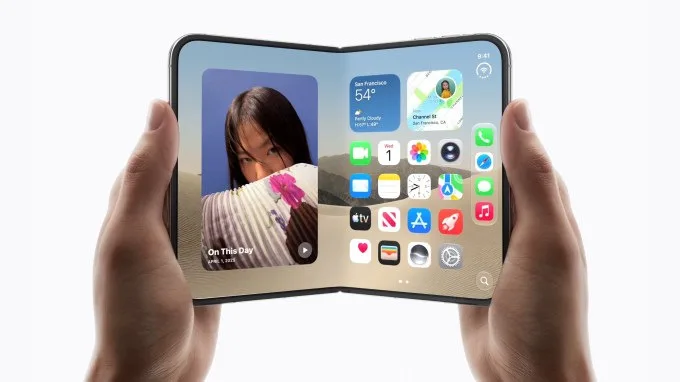
Image: iPhone Duo · Source
Apple’s iPhone Duo, a foldable device lacking Face ID, benefits from several settings tweaks to improve usability, including enhanced Touch ID setup, adaptive volume controls, back tap shortcuts, and customizable camera options.
Apple’s newly launched foldable smartphone, the iPhone Duo, has generated significant demand since its release. While the device introduces a novel form factor, early users have found it helpful to adjust certain settings to optimize daily operations such as device unlocking, navigation, and photography.
One of the main differences on the Duo compared to other modern iPhones is the absence of Face ID. Instead, users rely on Touch ID integrated into the device’s side button. Given the device’s multiple orientations—folded, unfolded, horizontal, and vertical—registering multiple fingerprints from both hands is recommended to ensure reliable authentication across varied grips. This can be done via Settings > Touch ID & Passcode > Add a Fingerprint.
For users who own an Apple Watch, enabling the feature to unlock the Duo with the watch can further simplify access. This setting requires the watch to be passcode-protected and worn near the phone, and can be activated at Settings > Touch ID & Passcode > Unlock with Apple Watch.
Another accessibility option, "Rest Finger to Open," allows unlocking the phone by lightly resting a finger on the sensor instead of pressing down, offering a potentially quicker experience; it’s found in Settings > Touch ID & Passcode.
Regarding hardware controls, Apple’s default fixed volume buttons keep their function consistent regardless of device orientation, with volume up and down buttons never changing roles. However, some users prefer the volume buttons to rotate their function with the device orientation for more intuitive use. This can be adjusted at Settings > Sounds & Haptics > Fixed Position Volume Controls.
To facilitate easier screenshot capture, the Duo supports an Accessibility feature called Back Tap, which lets users assign a double or triple tap on the back of the device to take a screenshot. This reduces the complexity of simultaneously pressing multiple side buttons, and can be configured at Settings > Accessibility > Touch > Back Tap.
The Reachability feature, originally designed to assist one-handed use on larger phones by shifting screen elements downward, functions differently on the Duo due to its wider, passport-like shape. Here, Reachability allows swiping from the left or right edge to bring content closer to the thumb. This feature is enabled by default but can be toggled off at Settings > Accessibility > Touch > Reachability.
For users who frequently fold the device shut when pausing use, an automation shortcut can be created to lock the screen automatically upon folding. This requires setting up a custom shortcut via the Shortcuts app, using the “Opened or Closed” automation trigger configured to lock the screen when closed.
Photography enthusiasts can customize the in-app Camera controls via the Camera app’s menu, arranging tools such as flash, Live Photos, and Night Mode according to personal preference. Additionally, the device’s Smart Take feature, which automates photo capture when detecting movement or pose changes, includes a flash indicator that can be disabled in Settings > Camera > Flash During Capture.
These configuration tips demonstrate how users can tailor the iPhone Duo’s unique design and features to better fit daily routines, improving comfort and efficiency despite some initial acclimation challenges introduced by the foldable format and lack of Face ID.

Sources and original reporting
Read the original source ↗
Comments (0)
No comments yet. Start the discussion.
Write a comment
Comments are published after moderation. Your name and comment will be visible publicly. Account